

Top 5 Best Ways How to Create an Email Signature: Examples and Tips
1. Use an email signature generator
2. Create an HTML email signature
3. Crafting your own HTML email signature
4. Design your email signature in Photoshop
5. Create an email signature in a text editor. Never do this!
6. Use Fiverr
7. Troubleshooting. Why your email signatures corrupt
8. Tips to make your email signature look professional
|
In business, the details truly matter, especially when striving for success. Unfortunately, many entrepreneurs tend to focus solely on global challenges, often missing out on subtle yet influential tools, such as a professional email signature.
An effective email signature is more than just a sign-off; it's a vital element of your personal brand and an excellent way to leave a lasting impression on your email recipients. It helps convey a sense of professionalism, build trust, and establish a personal touch with your audience. We have already discussed the best practices for designing a professional email signature. which includes incorporating elements like your company's logo, social media links, and other visual elements. These elements not only enhance the overall design but also provide opportunities for adding links to your social media pages, online content, and contact info, thereby helping to drive traffic and boost your email marketing efforts.
Moving forward, we'll focus on what to avoid when creating an impactful email signature for your online correspondence.
What Is an Email Signature?
.png?1694065396)
An email signature is a block at the end of an email message that typically includes your name, job title, company, contact details, website, logo, social media icons, or a call-to-action (CTA).
Here are some important differences:
- Email Signature: This contains your personal or professional contact information.
- Email Footer: This includes marketing or legal information below the signature.
- Digital Signature: This is a secure way to confirm that documents or emails are authentic.
By creating a consistent and correctly branded email signature for each member of your team, you build brand recognition among your company's contacts. According to recent studies, 20.4% of respondents value the ability to ensure consistency and brand alignment across the company through standardized email signatures. That is why you should use the same or similar template across your company to ensure that every signature matches the style and format you've approved.
Moreover, a well-structured email signature not only serves as a call to action, encouraging recipients to engage with your company further, but it also plays an important role in achieving your company's goals by running a successful email signature campaign. Crafting a professional email signature that aligns with your brand and goals, can have a significant influence over your target audience and amplify your online business presence.
For CFOs and accountants seeking professional and compliant email signatures, consider utilizing our CFO email signature generator and accountant email signature creator. These tools offer industry-specific templates to enhance your email communications.
 |
"A good email signature shows professionalism and gives you an increased awareness of your brand." Alex Berman A renowned entrepreneur, bestselling author, and B2B digital marketing authority. |
How to Create an Email Signature: Quick Step-by-Step Guide
Creating a professional email signature for your company is not as simple as you might think. To ensure the design is consistent across the whole organization and the HTML email signature is displayed correctly in the most popular email clients, you will have to follow the steps below.
Step 1. Choose the Purpose and Information
First, decide why you need an email signature. Do you want to build your personal brand, generate leads, or keep a consistent look for your company? Then, choose the important details to include: your full name, job title, company, phone number, website, and any other key contact information. Keep it short and simple - don’t add too much information.
The help of email signature software is essential at this stage.
Step 2. Choose a Creation Method
Choose how to create your email signature based on your skills and needs. You have several options: use an email signature generator (the easiest choice for most people), use built-in tools in Gmail or Outlook, write HTML code, design it in Canva or Photoshop, or hire a freelancer. Pick the method that gives you the best mix of quality, time, and control.
Step 3. Design the Signature
Design your signature to match your professional image. Choose colors, fonts, and a layout that reflect your style. If you need inspiration, look at these small business email signature examples to see how different brands put these elements together. Include your logo, a professional photo if appropriate, social media icons, and a relevant call-to-action (CTA). Make sure the design is clean, balanced, and represents your brand effectively.
Step 4. Test It Across Email Clients
Testing is essential. Check how your signature appears in Gmail, Outlook, Apple Mail, and other popular clients. Test on both desktop and mobile devices, in dark mode, ensure all links are clickable, and verify that images load correctly. A poorly displayed signature can damage your professional impression.
Some email signature management companies offer central management features to automate this process for large organizations, making it easier to maintain consistency.
Step 5. Install or Deploy It Across the Team
Once testing is complete, install the signature in your email client. For companies, distribute the approved signature to all team members. Use centralized management tools if available to ensure consistency across the organization and make future updates easier.
Best Ways to Create an Email Signature
Below you will find the five best ways to create an effective email signature. Each method has its pros and cons, so consider your company's needs, design preferences, and legal requirements when choosing the best approach. An eye-catching email signature with your contact information, job title, social media links, and brand elements can leave a positive and professional impression on your recipients.
To help you choose the best option quickly, we have included a comparison table:
| Method | Best For | Difficulty | Cost | Pros | Cons | Best Use Case |
|---|---|---|---|---|---|---|
| Email Signature Generator | Most users & businesses | Very Low | Free – Paid | Fast, templates, mobile-friendly, tracking | Limited customization in free plans | Teams, sales, marketing |
| Gmail/Outlook Settings | Individuals | Very Low | Free | Extremely simple, no extra tools | Very limited design options | Freelancers, personal use |
| HTML Coding | Custom design | High | Free | Full control, highly flexible | Time-consuming, needs testing | Developers, advanced users |
| Canva / Photoshop | Visual design | Medium | Free – Paid | Creative freedom, beautiful visuals | Often needs HTML conversion, less interactive | Designers, creative professionals |
| Hire a Freelancer | Complex branding | Low (for you) | Paid ($$–$$$) | Unique, tailored to your brand | Expensive, harder to update | Large companies, strict brand books |
1. Use an email signature generator
.png?1694065806)
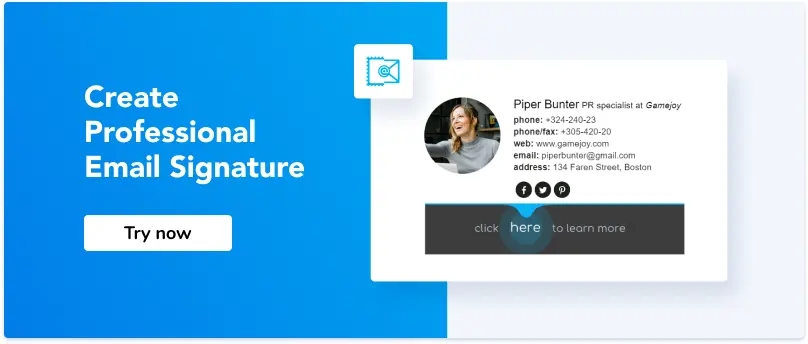
An online email signature creators that can help you make a signature is the most popular and recommended way for most people and businesses. It is especially ideal for businesses, sales and marketing teams, companies using Google Workspace or Microsoft 365, and anyone who needs to manage multiple signatures across a team.
Email signature generators allow you to create professional, consistent, and mobile-friendly signatures quickly without any coding or design skills.
How to Create an Email Signature Using a Generator (Step-by-Step):
- Choose a professional template that matches your brand style.
- Enter your personal and company information (name, position, contacts, website).
- Upload your company logo and professional photo.
- Add social media icons and a call-to-action (CTA) banner.
- Preview the signature on desktop and mobile, including dark mode.
- Copy and install it into your email client.
Pros of Email Signature Generator:
-
Can be free or almost free
Many of these generators offer options for a free email signature or nearly free alternatives for a more advanced design. A minimal email signature design is often possible with a free version of these tools.
-
You can create an email signature yourself
You don't need coding or graphic design skills to know how to create an email signature. All you need to do is sign up for a new account, input your personal data, and upload images like your company’s logo to the website.
-
Email signature is compatible with all email clients
If you are using Gmail, you may be looking for a reliable Gmail signature generator. Still, the good news is that there are a plethora of tools that will let you make a signature you can use with various email service providers. Watch this video to learn how to create a custom email signature that works smoothly with multiple email clients, even in dark mode.
-
Mobile-friendly email signature
A reliable HTML email signature generator ensures your interactive email signatures look great on various mobile devices.
-
Interactive email signatures
If you prefer a DIY approach to creating signatures, you can learn how to make an email signature design that is not only interactive but also visually appealing. This involves adding social media icons and other elements like animated GIFs and alt text to enhance engagement.
To motivate the recipient to view your website, Facebook page, or online store, you should add links to your social media profiles and use promotional banners with effective CTAs (Calls to Action).
-
Easy to update and manage
Some email signature generators offer centralized management for controlling and updating your team’s signatures.
-
Doesn't cause spam issues
Poorly formatted HTML may be a cause of the email blocking or filtering. To minimize the chances of your email and your HTML email signature being sent to a spam folder, use HTML email signature tutorials and the best HTML practices.
-
Allows to use of interactive email signatures as a marketing channel
A well-designed professional signature serves as an efficient marketing channel. It can drive more traffic to your website, promote your products, events, and updates, and encourage recipients to connect with you and your brand.
According to our latest research, 62% of businesses use their clickable signatures for email marketing regularly or occasionally. You can find more information on how other professionals incorporate email sign-offs into their marketing strategies by downloading the State of Business Email Marketing report.
Limitations of Email Signature Generators
Email signature generators are useful tools, but they have some limitations. Free versions usually have a small selection of templates, limited branding options, and may include watermarks or branded elements from the service. Many helpful features, like custom fonts, advanced analytics, banner rotation, or team management, are often only available in paid plans.
For individual users, the free or basic version is often enough. However, for teams and companies, it’s best to choose a generator that allows for centralized management. This option lets administrators control, update, and keep signatures consistent for all team members from one dashboard, saving time and ensuring consistent branding.
2. Create an HTML email signature
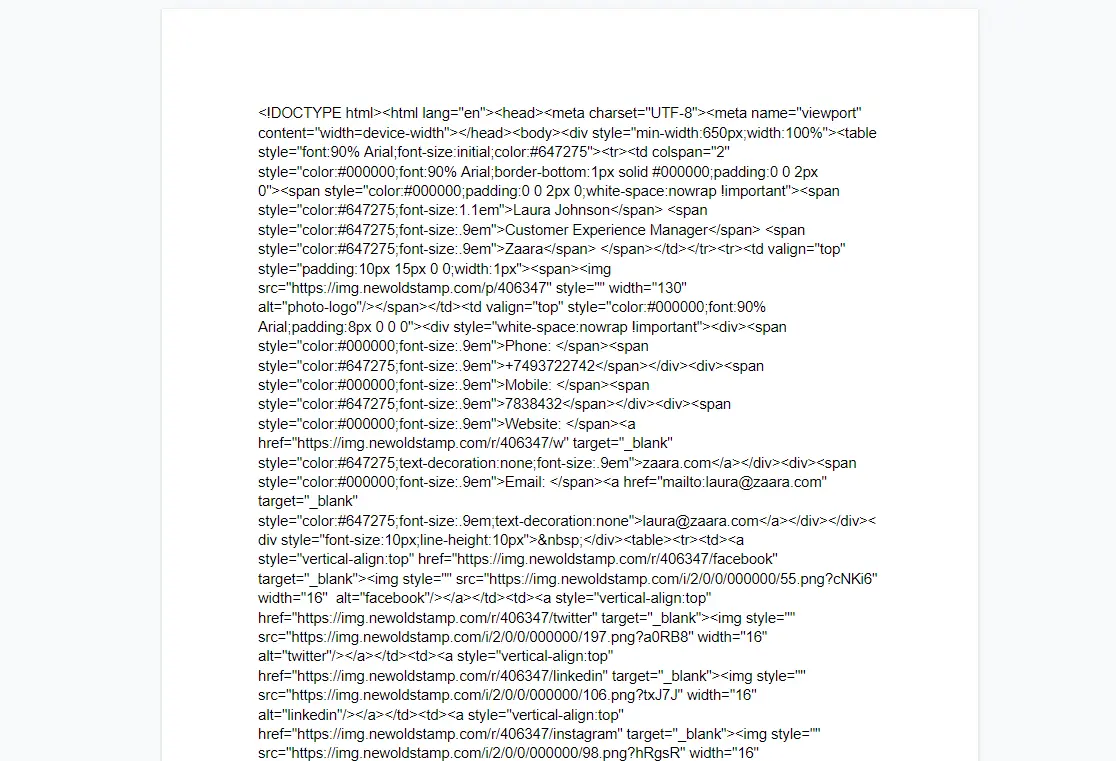
This method is best for users who want full control over their email signature's design and code. It is great for developers, designers, or anyone with technical skills who needs a highly customizable signature. However, you will need to know HTML and inline CSS, and you should test your signature carefully to make sure it looks good in different email clients.
Crafting your own HTML email signature
1. Understand your purpose
An HTML signature isn't just a visual element – it's a marketing tool – with backlinks to your website or social media, to boost traffic. Whether you use it for personal needs or business, you should clarify your goal. Knowing your goals helps you choose the right information to include.
2. Choose a tool
Several software options can help you create an HTML signature. Most offer similar functionalities, so pick one that suits your needs. Make sure also that the software supports your mail client, as there may be some surprises.
We at Newoldstamp work with all popular providers. We are welcoming you to make the signature of your dream.
3. Begin either with a free or paid option of an HTML email signature
Most software features both free and paid options. For example, free tools like HubSpot’s email signature generator offer core functionalities, like the option to add photos and additional contact links, as well as embed social media links and clickable CTA buttons. However, paid versions offer greater customization, allowing you to create a unique signature aligned with your brand.
For corporate needs, consider purchasing a package for multiple users.
4. Be selective about the information you provide
Do you remember your goals from step 1? Include only the relevant information. You should think over:
- your job title and company;
- corporate website or any other sites;
- phone number, email, post address (if applicable);
- social media profiles;
- Images (logos, headshots).
Most online generators provide dedicated fields for this information.
5. Fill in the required fields and copy an HTML email signature to your mail client
When you’ve decided on the information, insert it into the fields of your software. Upload photos and add links. Experiment with different designs to find one that aligns with your preferences or brand identity.
Finally, copy the generated HTML code and paste it into your email client. Send a test email to ensure everything displays correctly.
Pros of HTML Email Signatures
-
Full control over your signature template
If you or your developer are well-versed in HTML, the possibilities are limitless. You can bring any creative idea to life with your signature design.
-
Your signature can be edited at any time
Many email signature services offer subscription plans for a limited number of signatures per year. But if you want to modify your signature at any time for free, you should use HTML. Once you create your email footer, you won't have to pay anyone but will be able to edit it at any time. However, keep in mind that you will need to go through a somewhat large piece of code every time you want to change even a small bit of your signature, which brings us to the disadvantages of using HTML.
Limitations of HTML Email Signatures
-
You need to learn HTML
Learning something new is always good, but sometimes you don't have enough time. You might find yourself in a situation where you need a signature quickly, and learning HTML may not be achievable.
-
Hire a developer
If you're a busy professional with no spare time to master HTML or improve your coding skills, you need to start looking for people capable of doing your project. Finding a skilled web developer can be time-consuming, especially if you lack prior experience in hiring one.
-
Spend time on research
Email signatures can be displayed differently for various recipients due to the diverse tech requirements of different email clients. You'll need to invest time in understanding these requirements to ensure your signature appears as intended.
-
Spend time on testing
Remember that testing your signature across multiple email clients is necessary to ensure it maintains its appearance after being sent.
-
Preview issues on different devices
It's hard to imagine our life without mobile devices, especially smartphones and tablets. Many professionals use mobile devices for their business emails. Therefore, it's crucial to ensure that your email signature looks correctly on all types of devices. Over half of all mobile phones in the United States are smartphones, making it even more important to cater to this audience.
3. Design an Email Signature in Canva, Photoshop, or Another Design Tool

Design tools like Canva, Figma, Photoshop, and Adobe Illustrator are great for creating email signatures that look good. These tools let you decide on layouts, pick brand colors, and try out different styles.
But remember this important rule: do not use your signature as a single large image. While it may look great in the design tool, using it as one image can cause problems. Often, images do not load, links become unclickable, it may not work well on mobile devices, and it can trigger spam filters.
Pros of Using Design Tools
- Unleash Your Creativity
With tools like Canva, Figma, and Photoshop, you can create an email signature that looks great and fits your brand.
- Full Control Over Your Signature Template
You control every part of your signature, like the layout, colors, fonts, logo placement, icons, banners, spacing, and overall style. This helps you design a signature that matches your brand identity.
- Edit Your Signature Anytime
You can change your design whenever you need to, without extra costs or relying on others. Just update the file and export a new version.
Why You Shouldn’t Use One Big Image as Your Signature
Creating your email signature as a single image may look nice, but it has several important problems:
- Images might not show up
Many email programs block images by default. This means recipients often have to click "Download images" to see your signature.
- It shows as an attachment
Instead of appearing in the email, the signature can come as a separate file attached to the message.
- Poor experience on mobile device
A large image may not adjust well to smaller screens, making it hard to read on smartphones.
- No clickable links
You can't click on social media icons, website links, calls to action, or email addresses, which reduces their effectiveness.
- Makes emails larger
Big image files increase the overall size of your emails, which can slow them down.
- Higher chance of being marked as spam
Emails with large images are more likely to be caught by spam filters.
4. Create an Email Signature in a Text Editor: Why It’s Not Recommended
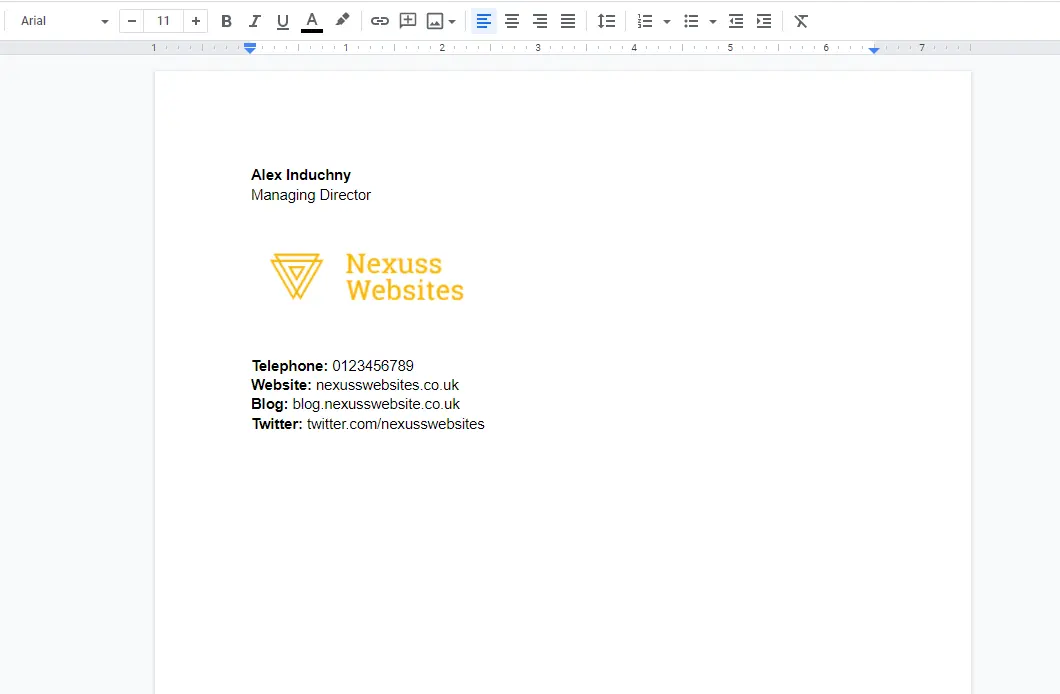
Another popular way of designing a professional signature for emails is by using a Microsoft Word template. So, how to make a signature in Word? You probably heard of Word Rendering Engine by Microsoft for creating the HTML code. The produced code looks the same across almost all Microsoft products like Outlook, Word, and Excel.
For instance, if you copy your Word email signature template and paste it directly into a message in Outlook, it will be appropriately displayed in most versions of Outlook. Although this method is free, some specific things will go wrong if you choose to follow this approach.
Common Problems with Text Editor Signatures
| Problem | Why It Happens | How to Avoid |
|---|---|---|
| Formatting issues | Word and Google Docs create messy, bloated HTML with proprietary code | Use a proper email signature generator or clean HTML code |
| Inconsistent visibility | Signature looks okay in Outlook but breaks in Gmail, Apple Mail, and others | Test in multiple email clients or avoid text editors entirely |
| Problems with images | Images often appear as attachments or fail to load automatically | Host images externally and use proper HTML img tags |
| Not mobile-friendly | Signatures don’t adapt to different screen sizes | Choose responsive design tools or generators |
💡Pro tip: Skip using text editors like Microsoft Word or Google Docs for your email signature. They might seem easy to use at first, but they can cause more problems later. For a clear, professional look, use an email signature generator or create your signature using clean HTML.
5. Hire a Freelancer or Email Signature Designer
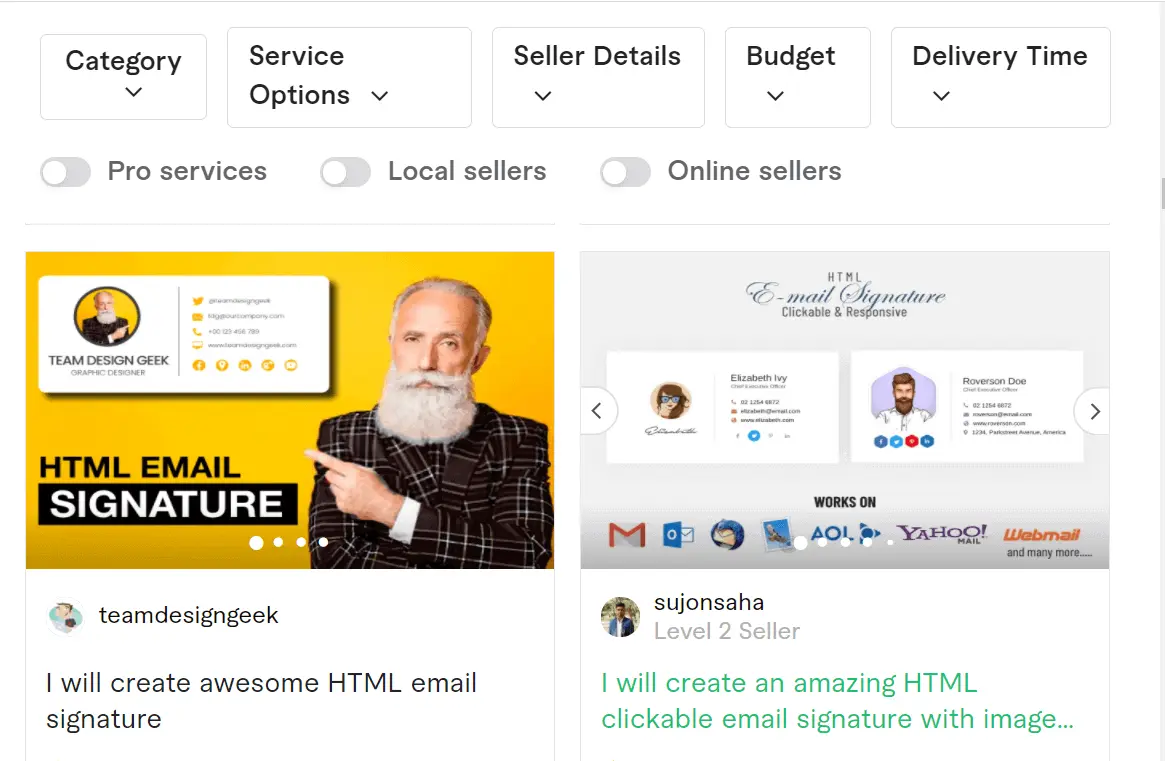
Hiring a freelancer or a professional email signature designer is a good option when you need a highly custom and unique design that perfectly matches your brand.
This approach is worth considering if:
- You have a complex brand book with strict guidelines
- You don’t have the time or skills to create the signature yourself
- You want a completely unique design tailored specifically to your business
Pros of Hiring a Freelancer
Custom Email Signatures
A skilled freelancer can create a custom email signature that reflects your brand.
Matching Your Brand
They will design the signature to fit your brand's colors, fonts, and overall style.
Save Time
You won’t have to learn HTML or design tools. The freelancer will take care of everything, so you can focus on other tasks.
Risks of Hiring a Freelancer
- The quality of the final email signature mainly depends on the freelancer's experience and skills.
- Updating the signature can be difficult, as you often need to contact the same freelancer again, which may take time and cost more money.
- There can also be compatibility problems; the signature might not show up correctly in all email clients, especially Outlook and Gmail, if it hasn’t been tested properly.
- Managing and updating signatures for multiple team members can be complicated and time-consuming, making it hard to scale.
- Some freelancers may opt for email signature generators to create your signature. Why not take it out for a spin?
Which Email Signature Creation Method Is Best for You?
Choosing how to create an email signature depends on your needs, skills, team size, and goals. Here’s a quick guide to help you make your choice:
| Your Situation | Best Method | Why This Method is Recommended |
|---|---|---|
| Individual professional / Freelancer | Gmail/Outlook built-in or Generator | Simple, fast, and free for personal use |
| Small business | Email Signature Generator | Good balance of professionalism, speed, and cost |
| Sales or Marketing team | Email Signature Generator with CTA & tracking | Allows clickable banners, analytics, and consistent branding |
| Large company / Enterprise | Email Signature Generator with team management | Centralized control, easy updates, and brand consistency across all employees |
| Designer / Creative professional | Design Tool (Canva, Figma) + HTML | Maximum creative control and visual quality |
| Developer | Pure HTML Coding | Full technical control and flexibility |
📍 Quick Recommendation. If you need to create email signatures, consider these options:
- Individuals and Small Businesses:
Use a professional email signature generator. It is the fastest and easiest option for 2026.
- For Customization:
Choose an HTML design tool or a generator that supports HTML.
- For Large Teams:
Select a generator with features for managing multiple signatures in one place.
This way, you can create a signature that not only looks professional but also supports your specific business goals.
Professional Email Signature Examples
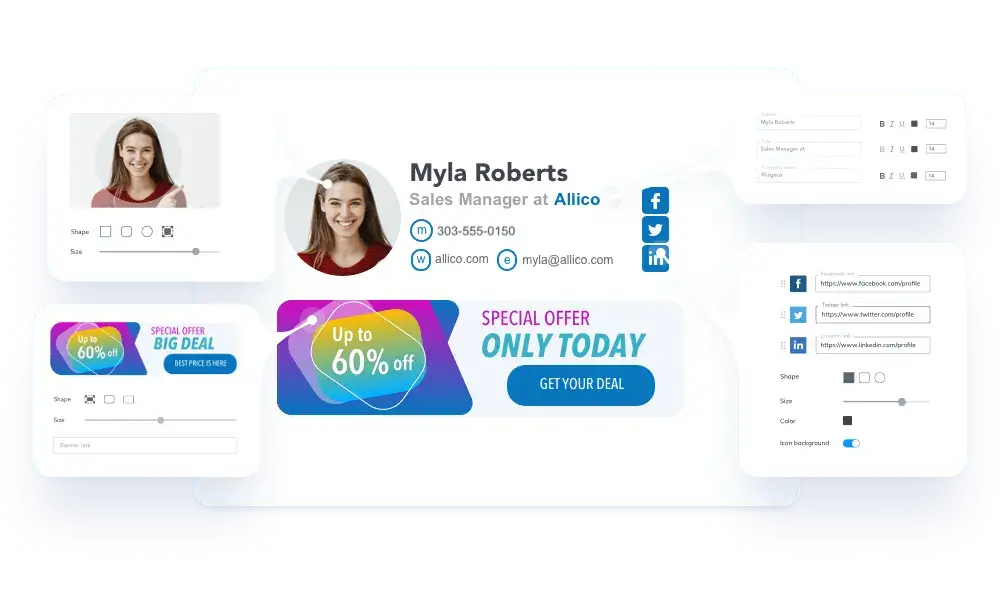
Email Signature Example for Sales Teams
Your sales team can engage with the customers by adding a personalized call-to-action in every email.
Email Signature Example for Marketers
Using email signatures for marketing has never been so simple.

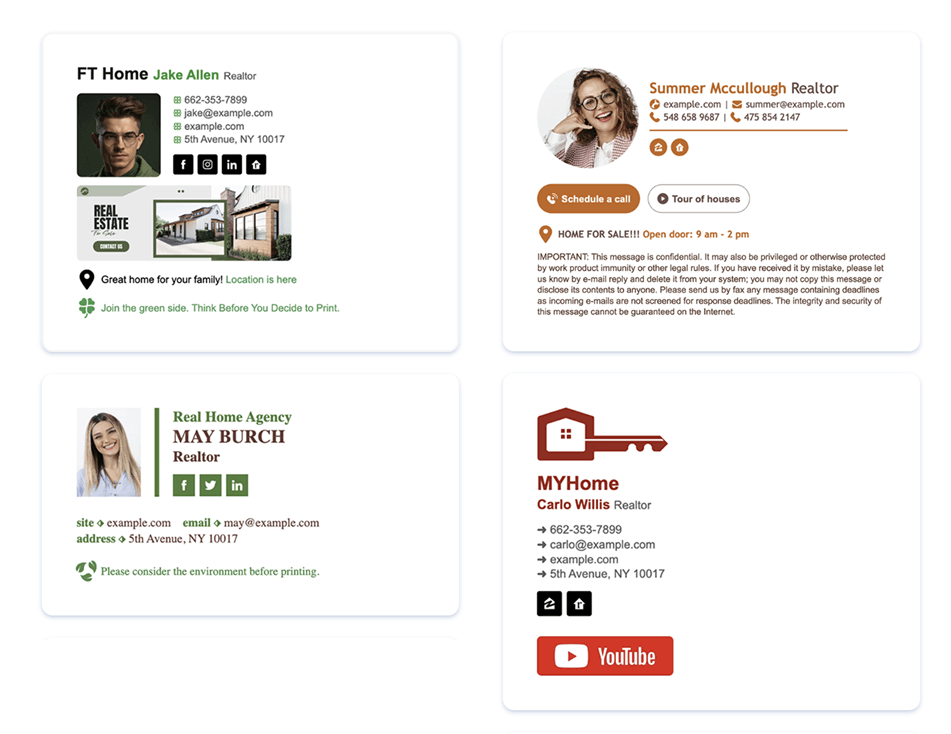
Email Signatures Example for Realtors
With a professional email signature, you can increase trust in your realtor’s brand and generate more leads with every email.
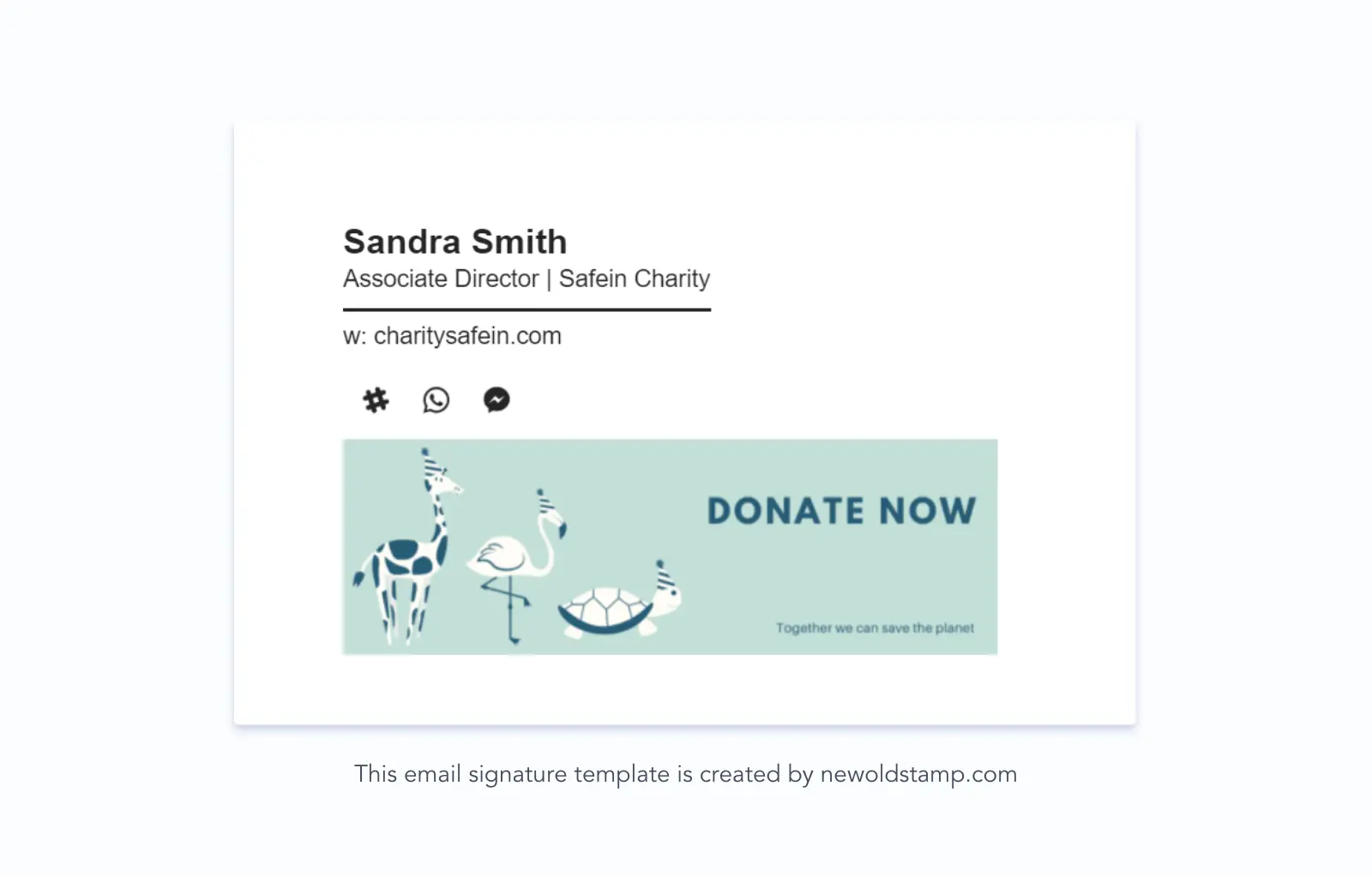
Email signatures Examples for Non-profits
It is challenging to earn customer trust as a nonprofit organization (NPO). Using professional signatures and showing the human side of your business may contribute to winning customer trust and loyalty.
Why Email Signatures Break and How to Fix Them
You've just set up your virtual business card, complete with your brand logo and contact details, and sent your first email. However, you might face various issues. Let's delve into a few common problems and how to address them.
| Issue | Cause | Fix | Prevention |
|---|---|---|---|
| Signature corrupts after forwarding | Email client converts email to plain text | Ask recipients to reply in HTML format | Use clean, simple HTML structure |
| Images don’t show up | Images embedded or not properly hosted | Host images on a reliable server and use absolute URLs | Always use externally hosted images |
| Signature looks bad on mobile | Not responsive / too wide | Use responsive design (media queries or tables) | Test on mobile devices before using |
| Signature appears as an attachment | Used as a single large image | Convert to HTML with separate elements | Never use one big image as your signature |
| Signature breaks in Outlook / Gmail | Incompatible HTML or CSS | Use inline CSS and table-based layout | Test thoroughly in all major email clients |
💡Pro tip: Always test your email signature in Gmail, Outlook, Apple Mail, and on mobile devices before sending it to clients or your whole team. This simple step can prevent most display problems.
Signature Breaks After Forwarding
This often happens when the recipient replies or forwards the email, and their email client converts the message to plain text format. As a result, your signature loses its formatting and structure.
Solution: Use clean, simple HTML code and avoid overly complex styling. There is no full guarantee, but this significantly reduces the risk.
Images Don’t Show in the Signature
This is one of the most frequent issues. Images may appear as a blank space, red “X”, or as attachments because they were embedded directly or not properly hosted.
Solution: Always host your images on a reliable external server and use absolute URLs (full link starting with https://). Avoid copying and pasting images directly into the signature.
Signature Looks Bad on Mobile
Your signature may look stretched, too small, or broken on smartphones because it wasn’t optimized for mobile screens.
Solution: Use a responsive design (table-based layout or media queries), keep the signature narrow (maximum 600px wide), and make sure text and icons are large enough to be readable and clickable on mobile devices. Always test on phones before final use.
Signature Appears as an Attachment
This usually occurs when the entire signature is created as one large image. Email clients treat it as a file rather than part of the message.
Solution: Never use a single image for your full signature. Instead, build it using HTML with separate elements (text + individually hosted images for logo, photo, and CTA).
Email Signature Best Practices
Many people very often underestimate the power of email signatures. Those signatures provide you with an opportunity to make it clear who you are, make it simpler for your customers to reach you, and give people a possibility to learn more about you, your business, and your services.
According to The State of Business Email Marketing report, 82% of marketers use email signatures to increase brand awareness and reputation.
Thus, it’s better to carefully think about the data you want to include in your email signature so that you can benefit from all the advantages an email signature provides.
Want to create a professional email signature that leaves a lasting impression? Here are a few suggestions that will help you create a professional-looking email signature.
1. Keep Only Essential Information
Focus on elements like your name, job title, department, and contact details. Consider your preferred communication channels when deciding what to include, such as phone numbers for companies relying on calls or website links for those preferring online forms.
This is also related to your social media profiles and other possible contact information. Just figure out what communication channels would fit you best and add them to your email sign-off.
2. Use a Clean and Branded Design
The professional signature should contain your business information. Some people neglect that. If you represent a company, it’s better to include your corporate email, and your title, and share your website. For personal needs - feel free to be more creative.
Simplicity becomes a synonym for competency. When it comes to your email signature, make sure you make everything about it clear and to the point so as not to confuse your addressee.
“Make every detail perfect and limit the number of details to perfect”, as Jack Dorsey says. Simple and even minimalistic approach rocks.
When designing a professional email signature, it’s all about presenting your information in a modern, stylish, and matching corporate identity way.
.webp?1710763844)
3. Make Links and CTAs Easy to Click
- Underline all links or use a clear color so they stand out.
- Make social media icons 24 to 32 pixels in size.
- Add enough padding around buttons and links so they are easy to tap on mobile devices.
- Use clear text for links, like “Visit Our Website” instead of just showing a URL.
- Put the most important call-to-action (CTA) near the top or in a noticeable banner.
4. Optimize for Mobile and Dark Mode
- Keep the total width under 600 pixels.
- Use a layout that adjusts to different screen sizes, either with tables or media queries.
- Select colors that stand out and are easy to read in Dark Mode.
- Make sure body text is at least 14 pixels in size.
- Check how the signature looks on both light and dark backgrounds.
5. Test Before You Install It
Send test emails to different accounts like Gmail, Outlook, and Apple Mail. Check how it looks on both desktop and mobile devices. Make sure it appears correctly in Dark Mode. Click all the links to ensure they work and confirm that images load properly. Finally, forward the email to see if the formatting stays the same.
Common Email Signature Mistakes to Avoid
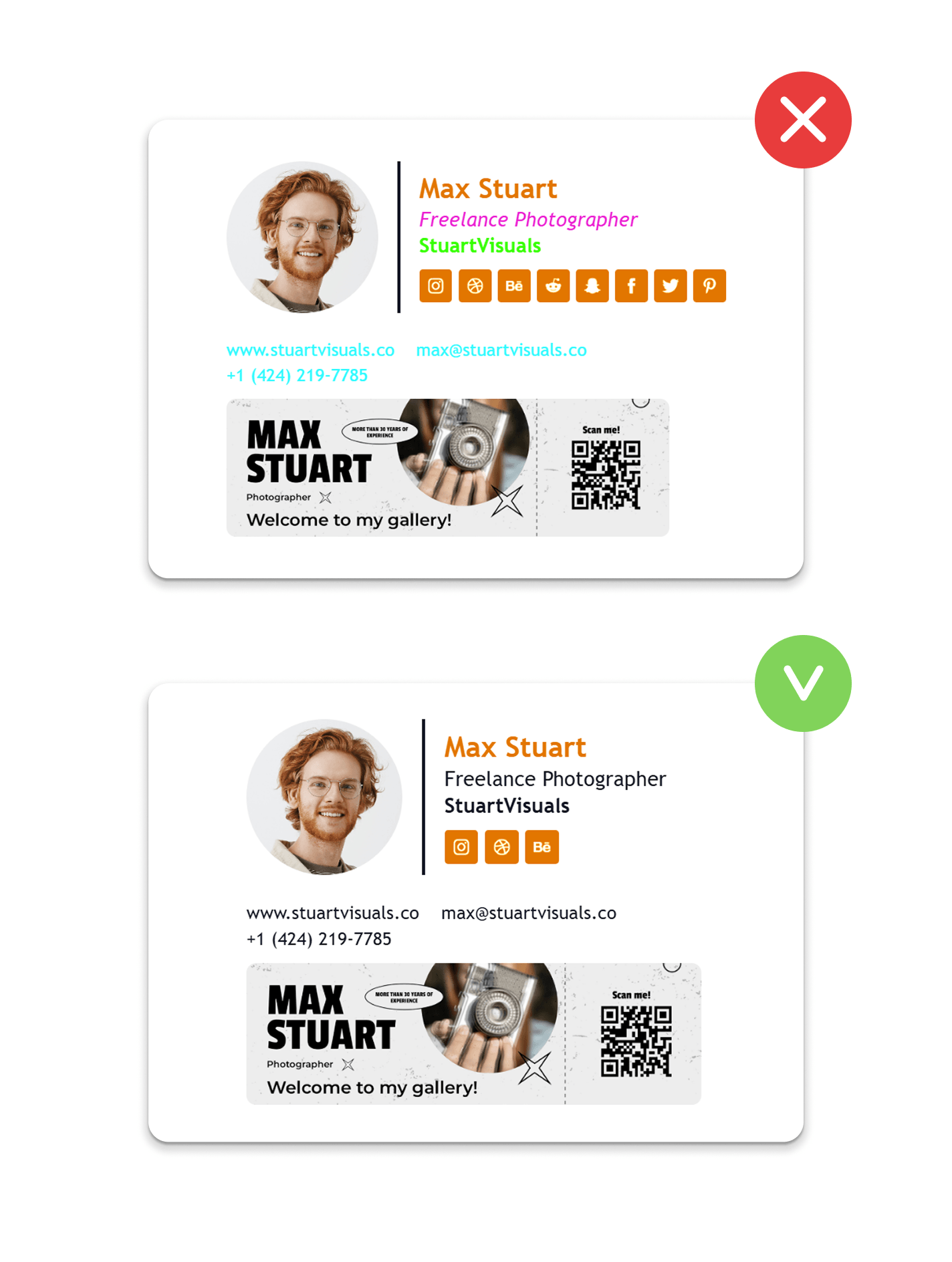
To create a professional and effective email signature, avoid these common mistakes:
1. Don’t use one big image for your signature
A single large image can cause visibility problems. It makes links unclickable, does not work well on mobile devices, and increases the chance of being marked as spam.
2. Don’t overload your signature with information
Too much text, multiple phone numbers, quotes, or many links make it look messy and unprofessional.
3. Check your links
Always ensure that all links, including your website, social media, and calls to action, are working.
4. Keep banners and CTAs smaller
Large promotional images can slow down email loading times and may frustrate recipients.
5. Make sure it’s easy to read
Low contrast between text and background, especially in Dark Mode, can make your signature hard to read.
6. Update your information
An outdated job title, phone number, or company name can hurt your credibility.
7. Design for mobile
A signature that looks good on a desktop might not display well on smartphones.
8. Always test your signature
Testing it across different email clients and devices helps avoid display problems.
By avoiding these mistakes, you can create an effective email signature.
Conclusion
Since you're dealing with a signature, not a document or an image, using Microsoft Word or Photoshop is not recommended. Our best recommendation would be to use email signature generators, which offer a variety of templates created by professional designers and come with excellent technical support. One of the noteworthy benefits of these generators is that they ensure full email signature compatibility with all email clients.
Frequently Asked Questions
What Is the Best Way to Create an Email Signature with a Logo?
The best way to create an email signature with a logo is to use a professional email signature generator, like Newoldstamp. These tools can help you design beautiful email signatures with logos and other key elements.
How do I create a professional email signature?
To craft a professional email signature, keep the details short but accurate. Prioritize the two or three most important links and social media accounts you want to include. Consider adding a logo or a simple headshot for added authority and trust.
Use an email signature generator like Newoldstamp to design and deploy your signature automatically. You can use our templates as a guide while creating your email signature.
Should I use pictures in my email signature?
Yes, using a logo or other images in your email signature can enhance its visual appeal and professionalism. Make sure the images are appropriately sized and do not make your signature too large. For guidance on using images effectively in your signature, check out our guide here.
How to add a logo to an email signature?
For a streamlined approach to adding a logo to your email signature, consider using professional email signature generators like Newoldstamp. They make it easy to incorporate logos for various email clients. Learn more at How to Add Logo to Email Signature.
What should be in your email signature?
A well-crafted email signature includes:
- Full name, position, and company
- Contact number
- Email address
- Website link
- Social media links
- Company logo or photo for a personal touch
- Call to action.
Create customized signatures for your team - find inspiring email signature examples created with Newoldstamp. Check more information about using Newoldstamp email signature generator here.
What Is the Easiest Way to Create an Email Signature?
The easiest way to create an email signature is to use a professional email signature generator. You don’t need coding skills, design experience, or technical knowledge. Most generators have ready-made templates. You can quickly add your information, logo, and call-to-action (CTA) in just a few clicks. They also show you a preview instantly and let you install the signature with a simple copy and paste.
What Size Should an Email Signature Be?
For the best results, follow these recommended dimensions: maximum width of 580–600 pixels to fit well in most email clients, height between 150–250 pixels (ideally under 200px for a clean look), logo size of 120–180 pixels wide, profile photo of 80–120 pixels wide, and CTA banner no larger than 600×100 pixels (smaller is better).

